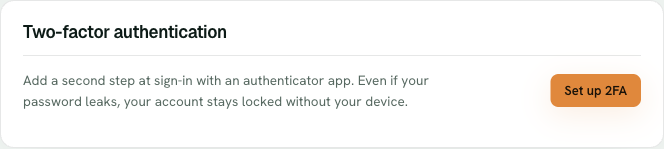
Two-factor authentication adds a second step to signing in: your password plus a rotating code from your phone. On Belov Cloud it's entirely optional and off by default — nobody is forced to use it — but it's a strong, quick way to lock down your account, and here's how to switch it on.
Two-factor lives in Account — set it up with any authenticator app, or leave it off. It's optional.
1
Start setup in Account
Go to Account and start two-factor setup. You'll get a QR code to scan with any authenticator app — Google Authenticator, 1Password, Authy, or whatever you already use. It's standard TOTP, so any of them works.
2
Confirm a code to turn it on
Your authenticator app starts showing a 6-digit code that changes every 30 seconds. Enter the current one to prove the setup worked. Two-factor isn't actually on until you confirm that code.
3
Save your backup codes
You're given a set of one-time backup codes. Save them somewhere safe and separate from your phone — a password manager is ideal. They're your way back in if you ever lose the device with your authenticator on it.
4
Sign in with the extra step from now on
After that, signing in asks for a 6-digit code from your authenticator app after your password. That's the whole change.
Optional, and reversible
Two-factor is opt-in — off until you choose to turn it on, and nobody is forced to enable it. You can also turn it off again anytime from Account. If you lose your phone, one of the backup codes gets you in, which is exactly why saving them somewhere safe matters.