
Restore a backup to staging & push selectively
Two features that make rolling back and promoting changes safer: restore a backup into staging instead of straight onto live, and choose exactly what a staging push replaces on your live site.
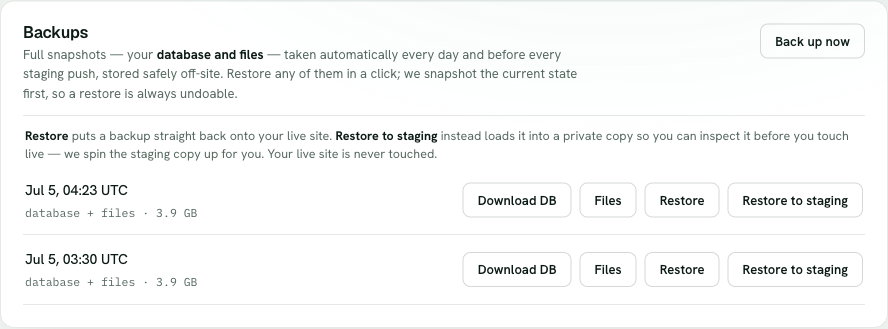
Restoring a backup directly onto your live site is fast, but it's a leap of faith — you find out whether that snapshot was the right one after it's already replaced production. Restore to staging removes the leap. Instead of overwriting live, the snapshot is restored into an isolated staging copy. You open it, click around, confirm it's genuinely the state you wanted, and only then decide what to do next. Throughout, your live site is never touched by the restore.
- Choose a snapshot to restore to stagingIn Backups, pick the dated snapshot you're interested in and restore it into staging rather than onto live. Your live site keeps serving, unchanged.
- Open staging and confirmOpen the staging URL and check it's really what you wanted — the right day, the right data, the page you were trying to get back. You're inspecting a copy, so there's no pressure and no risk to production.
- Then decideHappy with it? Promote it to live with a push. Not what you needed? Restore a different snapshot to staging and look again. Live only ever changes when you deliberately push.
When you do push staging to live, you can choose exactly what gets replaced. Everything promotes both files and database — the normal full push. Files only replaces your live files but keeps your live database untouched, which is what you want when you've changed code or a theme but don't want to overwrite orders and content that accumulated on live. Database only does the reverse: it replaces the live database but leaves your live files in place. Whichever mode you pick, we always take a fresh backup of your live site first — every mode, every time — so any push is undoable.