Making changes — a theme edit, a plugin update, a PHP bump — without risking your live site. Every site gets an isolated staging copy you can break freely, then promote to live in one click when it's ready.
Staging isn't a folder on your live site — it's its own isolated environment with its own SFTP account and its own separate database. It comes up password-protected by default and stays hidden from search engines no matter what. Work there can't touch production until you deliberately push it.
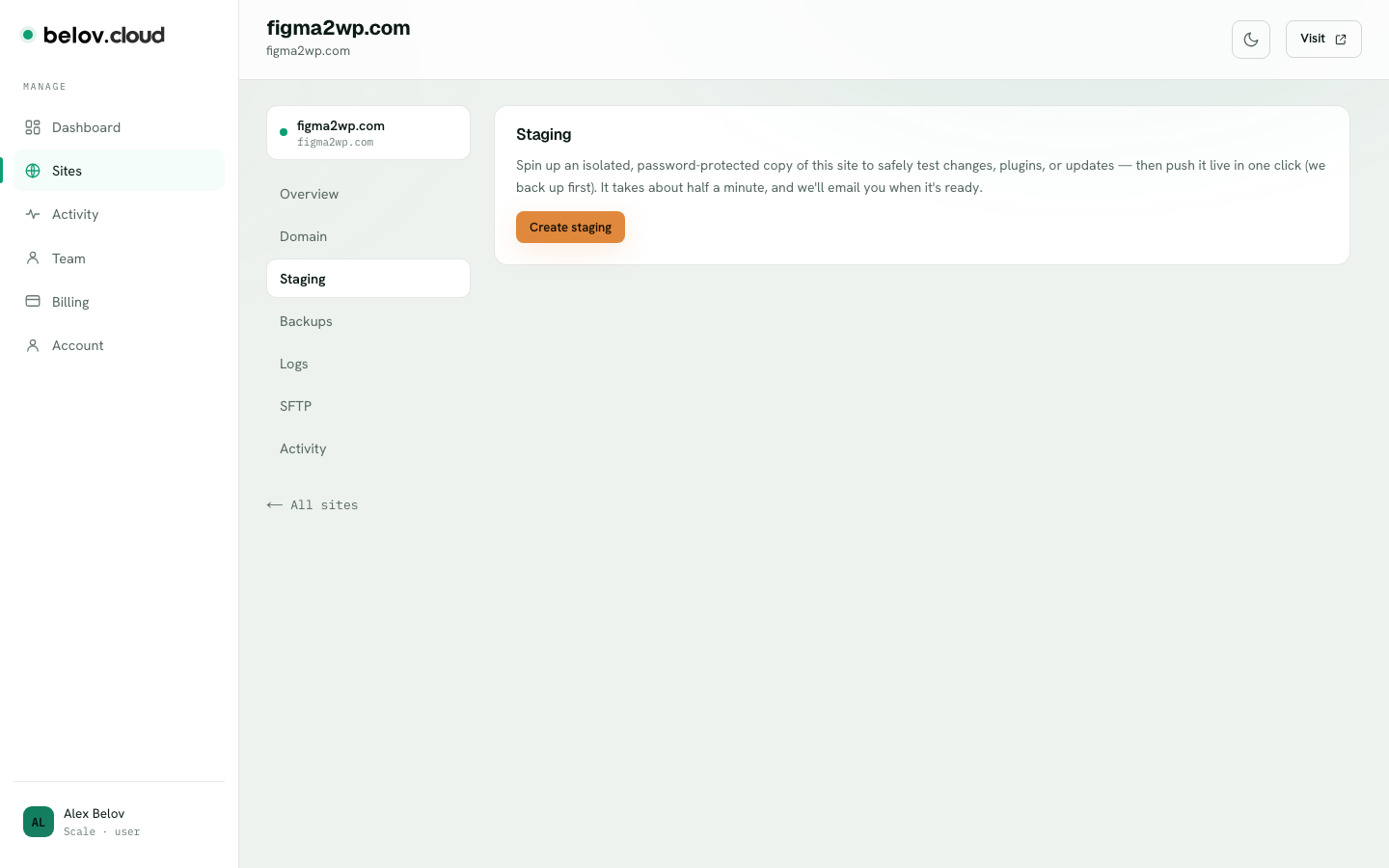
The Staging tab — one click creates an isolated, password-protected copy (we back up first).
1
Create staging
On the site, click Create staging. Belov Cloud clones your live files and database into a fresh isolated copy at a staging URL. It takes about half a minute — we email you when it's ready.
2
Make your changes on staging
Update plugins, edit code over SFTP, switch the PHP version — whatever you're testing. Break it as hard as you like; live is untouched.
3
Push staging to live
When it works, click Push to live. A backup of production is taken first — so even a push is undoable. Your tested changes replace production in one step, caches flushed for you.
4
Or pull live to staging
Pull from live refreshes staging with the current production files and database — a clean starting point that mirrors what's really running.
5
Verify
After a push, open your live domain and confirm the change is in place. Staging and live are separate environments — you always know which one you're looking at.
Sharing staging with a client
Need someone to review staging without juggling a password? The Staging tab has a Password protection switch — turn it off and anyone with the staging link can view it, no login prompt. Search engines still can't index it: staging is banned from crawlers at the edge (robots.txt and X-Robots-Tag) in every mode, public or locked. Flip the switch back on whenever you're done, and a freshly created staging always starts locked.
A note on WooCommerce and live data
Live orders and customers keep accumulating on production while you work on staging. A push-to-live promotes your code and content — it doesn't merge in orders placed during your test. Plan around that: push during a quiet window, so you're not overwriting a database that took real orders while staging was frozen in the past.
Staging is included on every WordPress plan, with push-to-live that refuses to overwrite new orders silently.